Stock Usage
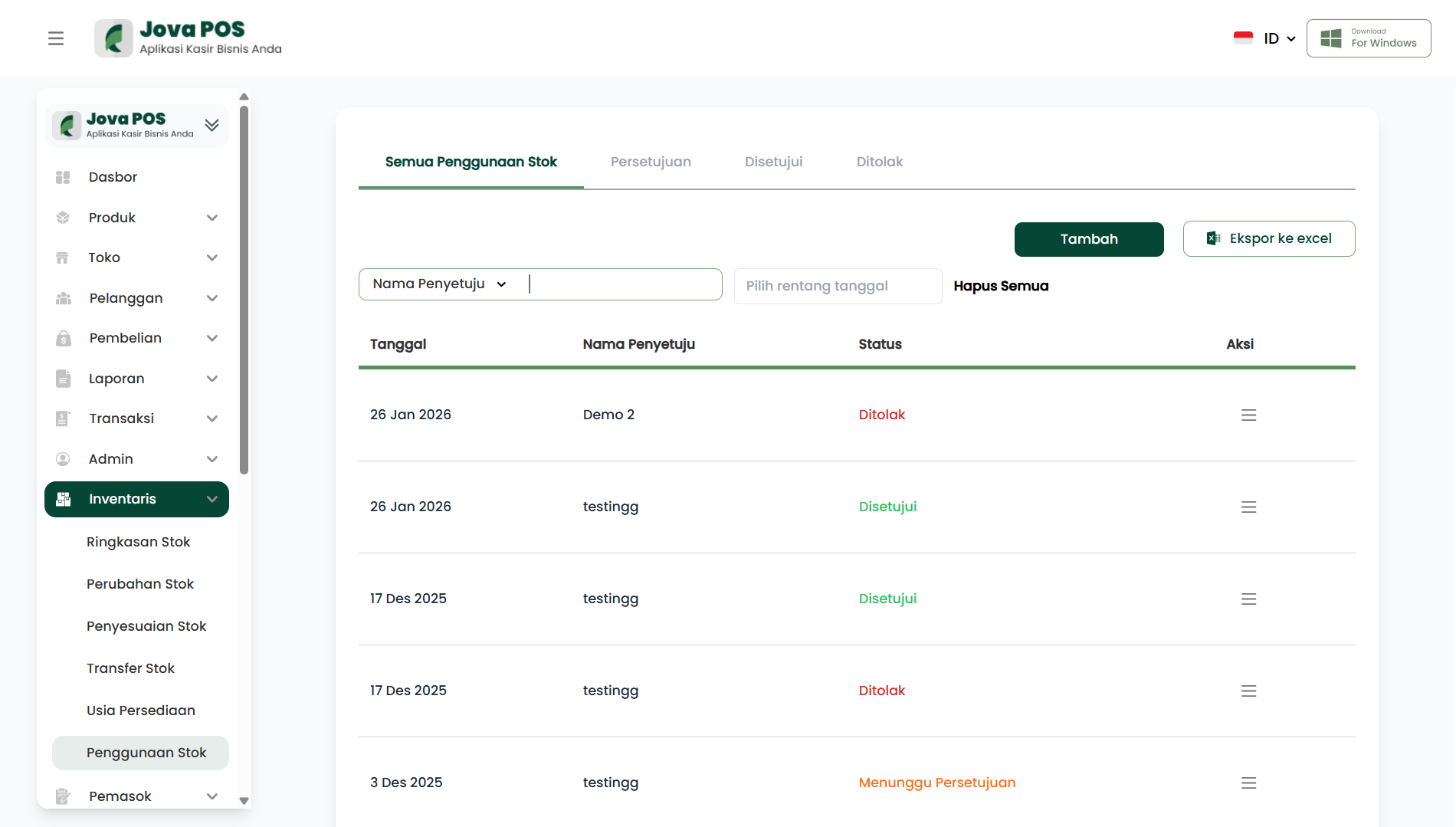
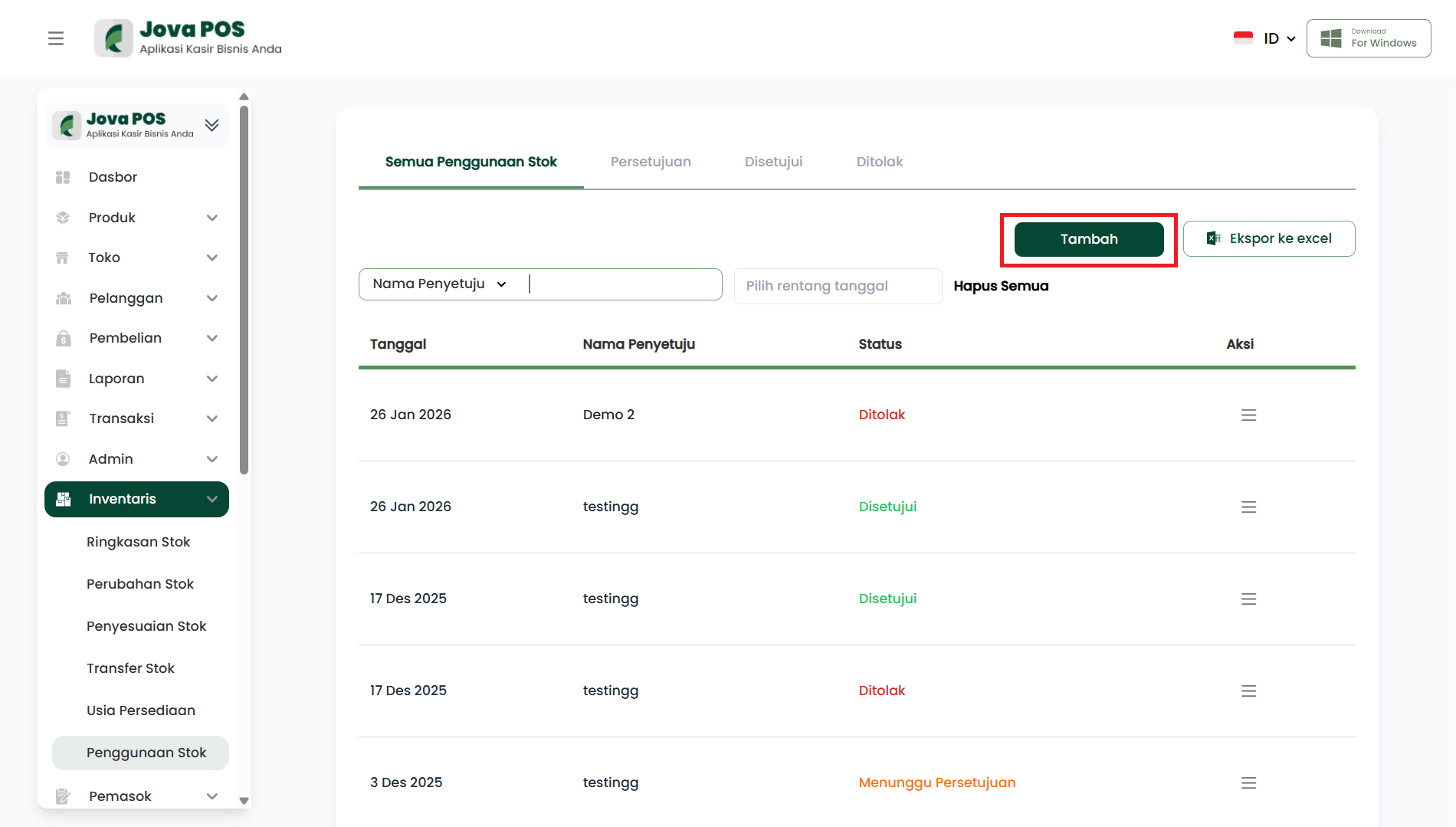
On the All Stock Usage tab, you can view all stock usage data. Here are the steps for recording and verifying stock usage.
1. Viewing Stock Usage Data
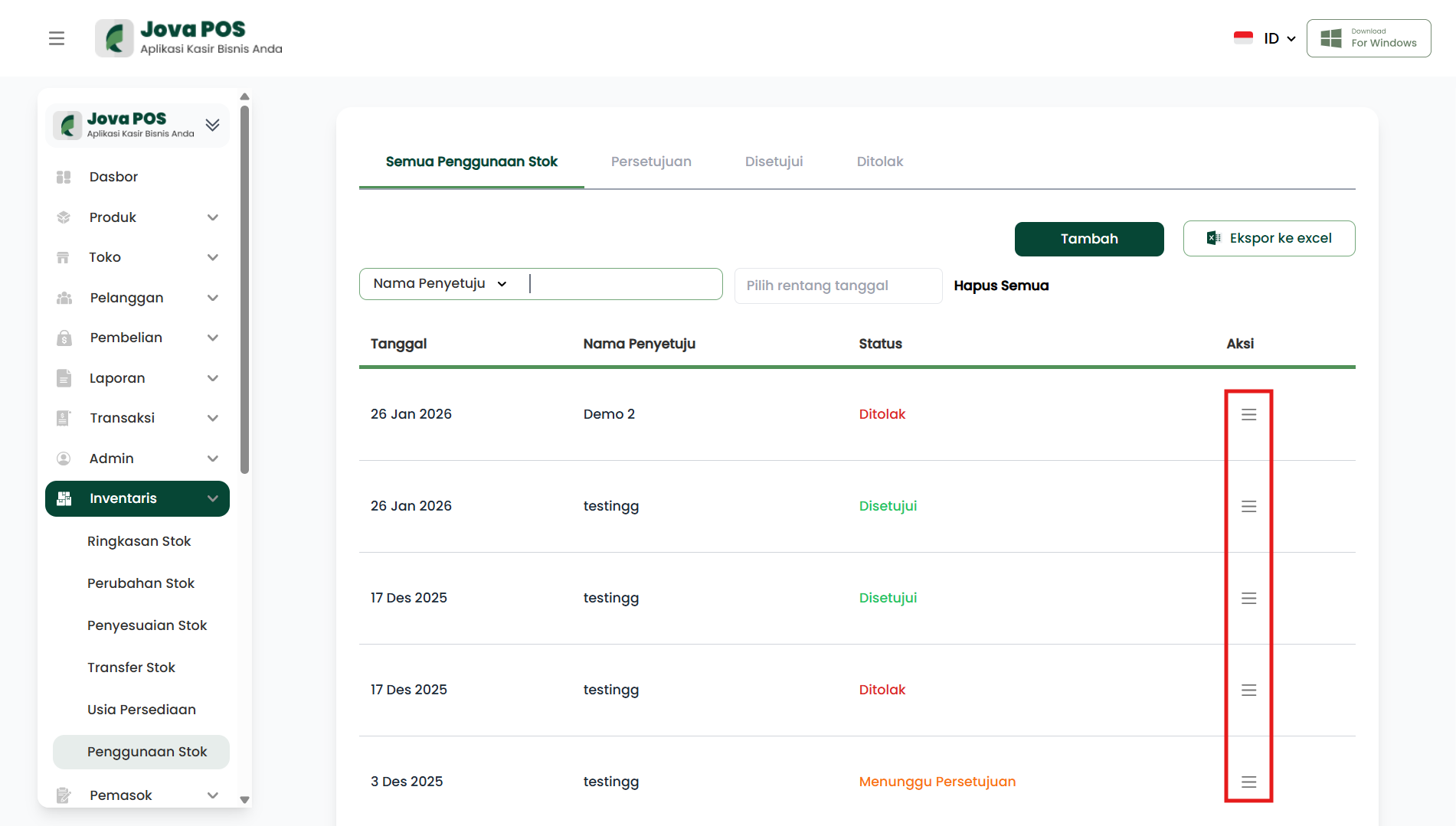
On the main Stock Usage page, you can view the list of all stock usage that has been recorded.
All Stock Usage View:
2. Adding New Stock Usage
To add new stock usage, click the Add button.
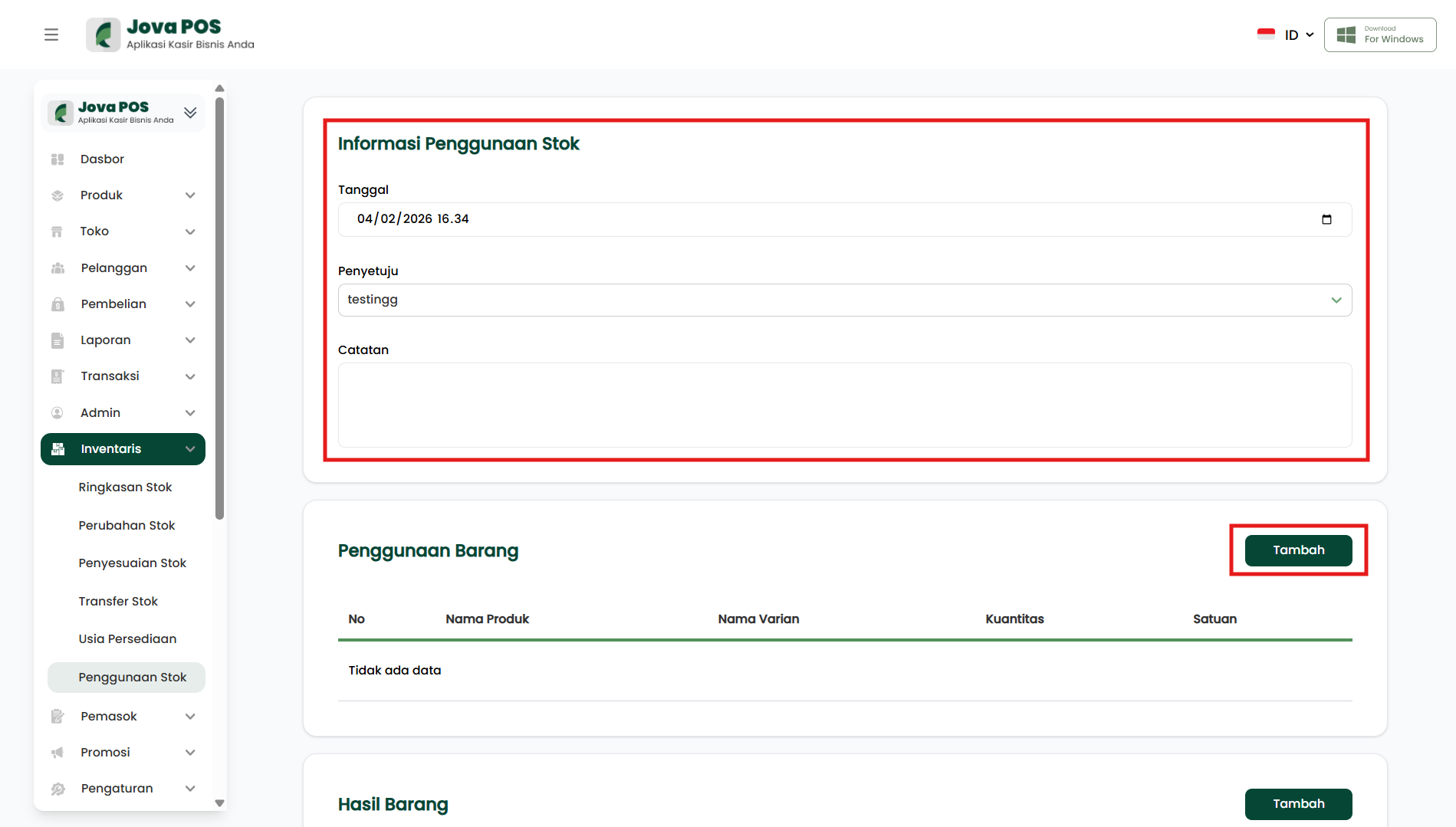
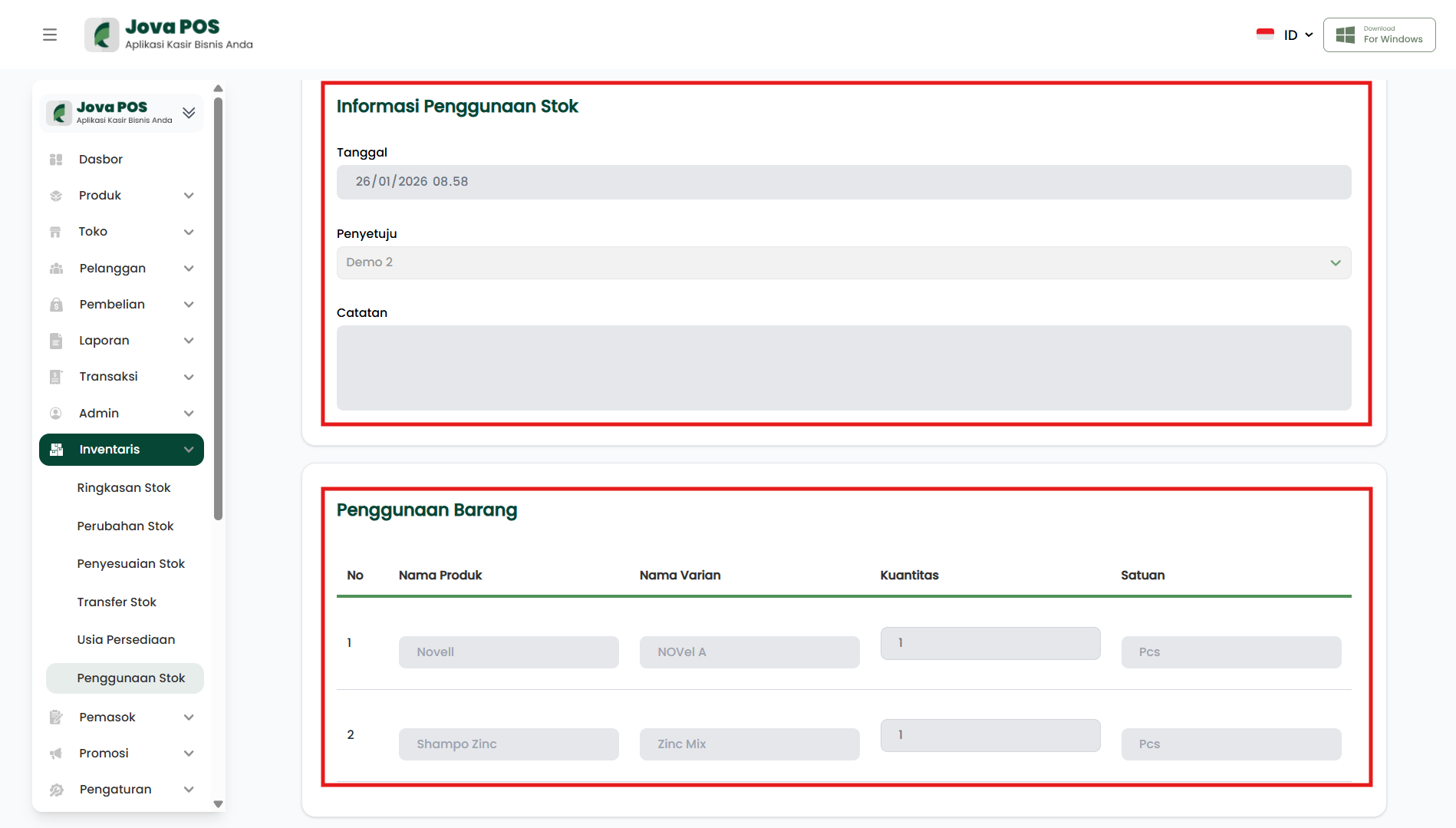
- Select Date
- Select Approver
- Enter Notes (Optional)
Item Usage Information Form:
In this form, you can select the product being used and enter related data.
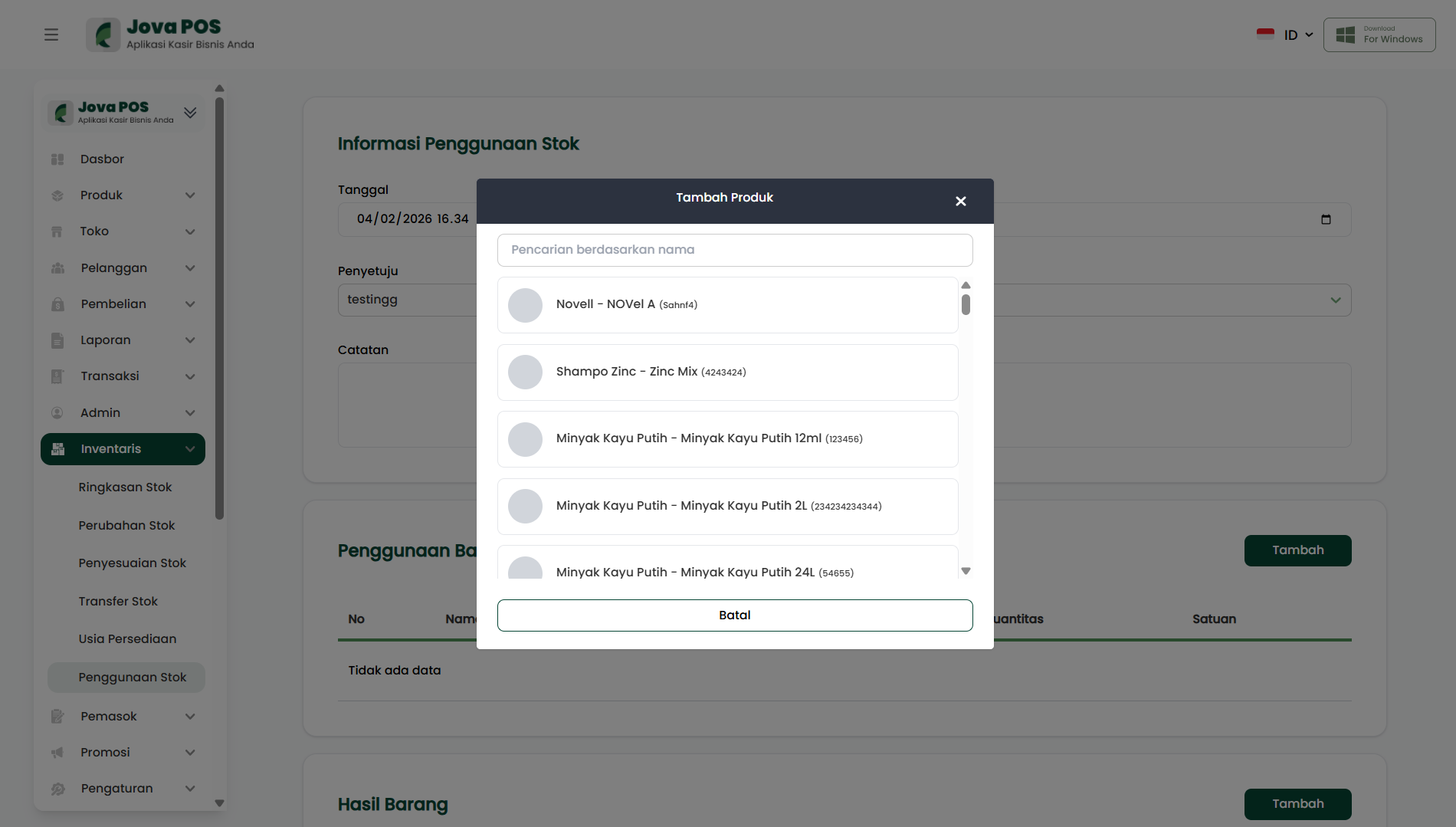
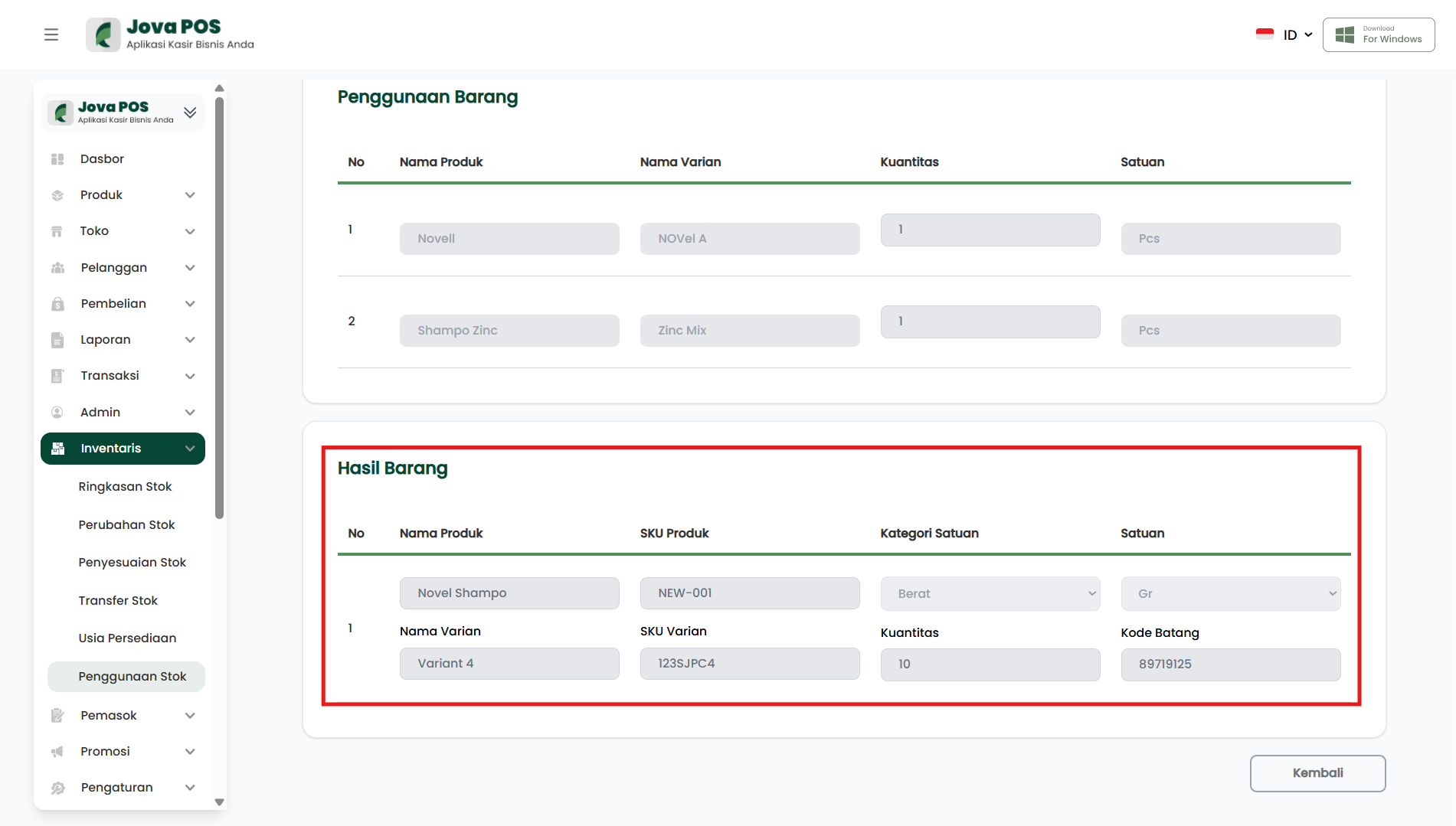
3. Entering Stock Usage Results
After selecting the product and variant, the system will display the stock usage results at the bottom of the form.
Example Stock Usage Result:
Enter
- Product Name: Shampo Zinc
- Product SKU: B100
- Unit Category: Quantity
- Unit: Pcs
- Variant Name: Sabun Mandi
- Variant SKU: G1
- Quantity: 1
- Barcode: 12345678
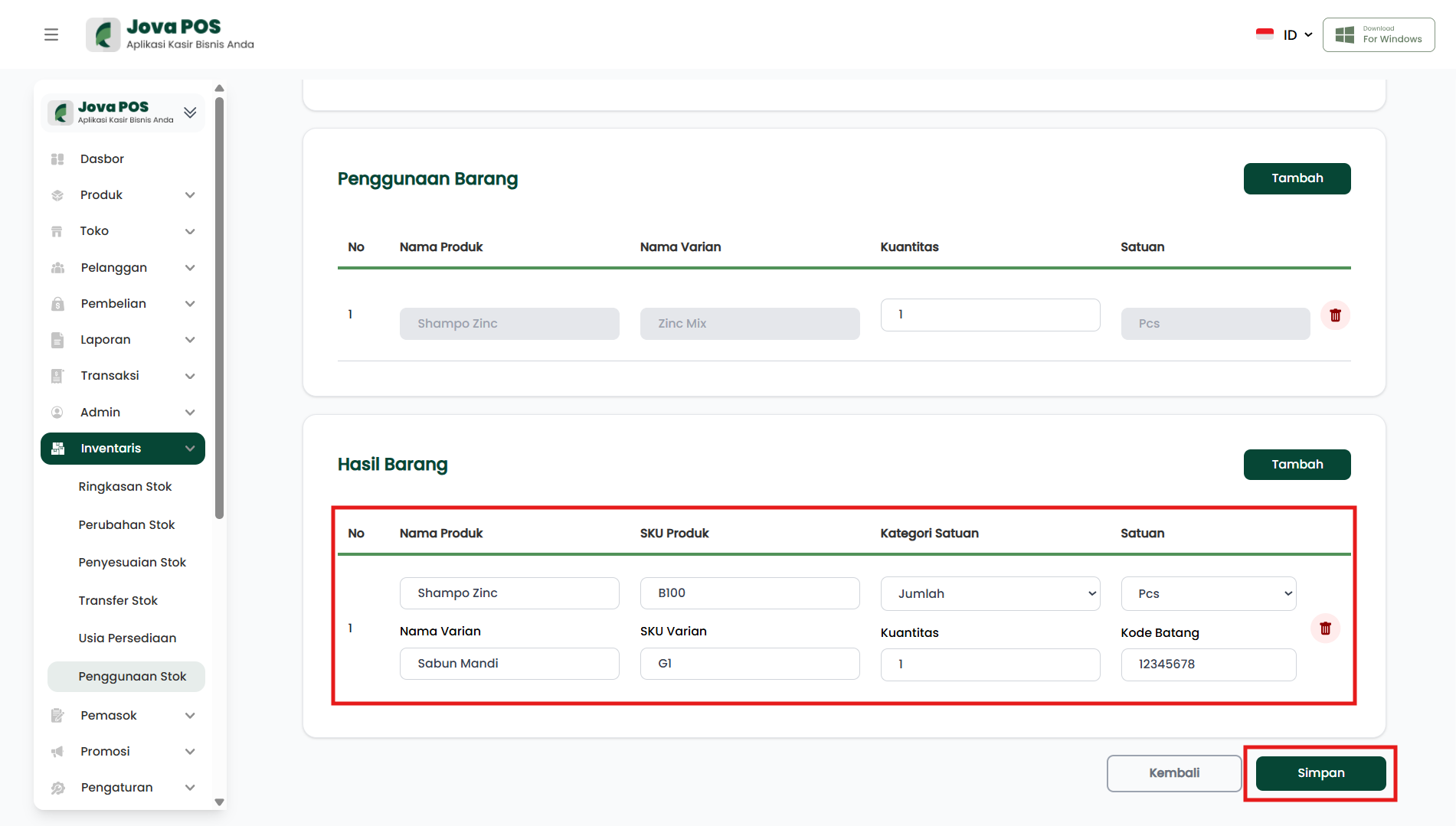
After entering all the data, click Save to save the new stock usage.
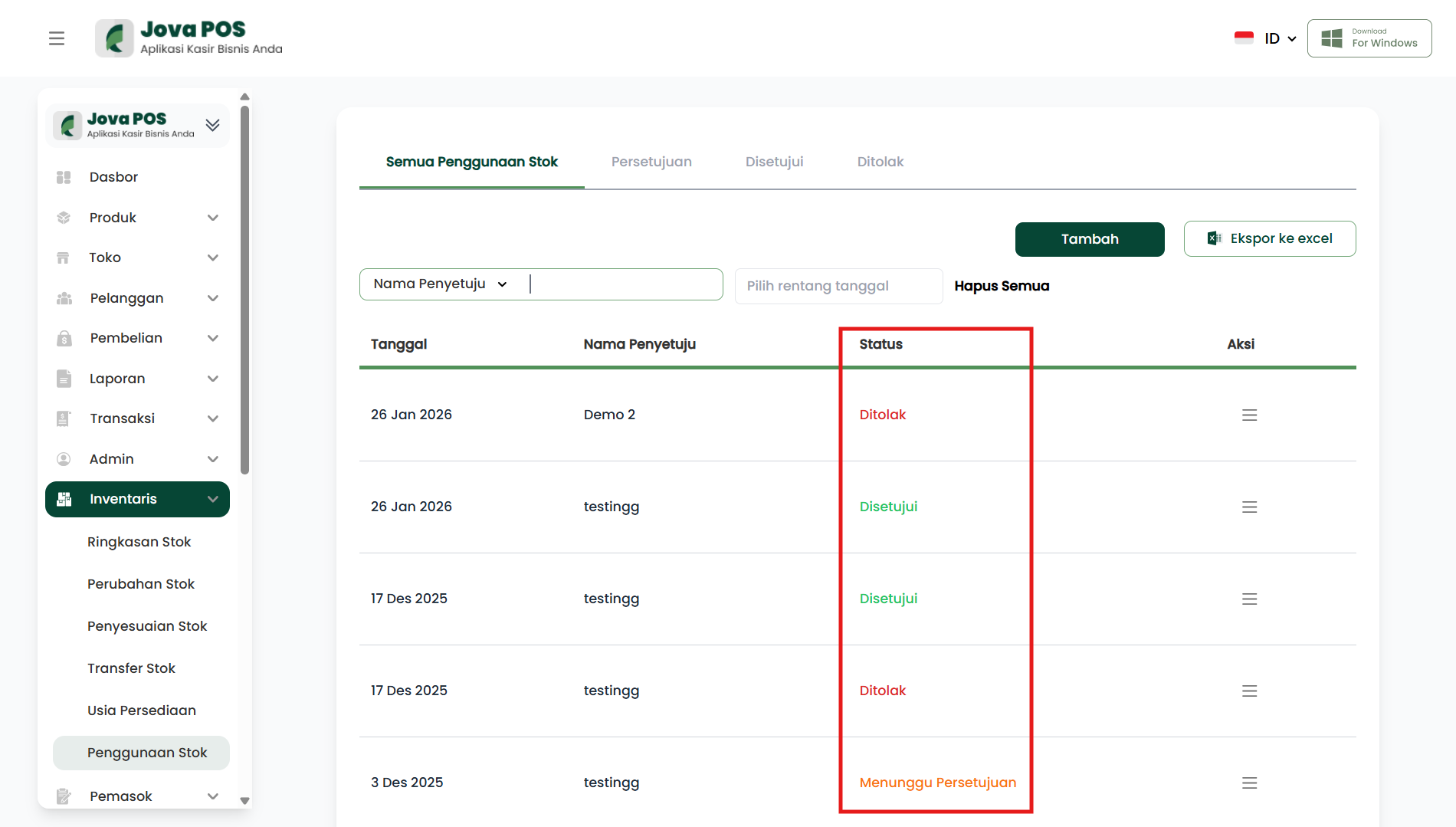
4. Viewing Stock Usage Status
After the data is saved, you can view the stock usage status in the All Stock Usage table.
Example Usage Status:
- Status: Approved, Rejected, Pending Approval
5. Using Search Filters
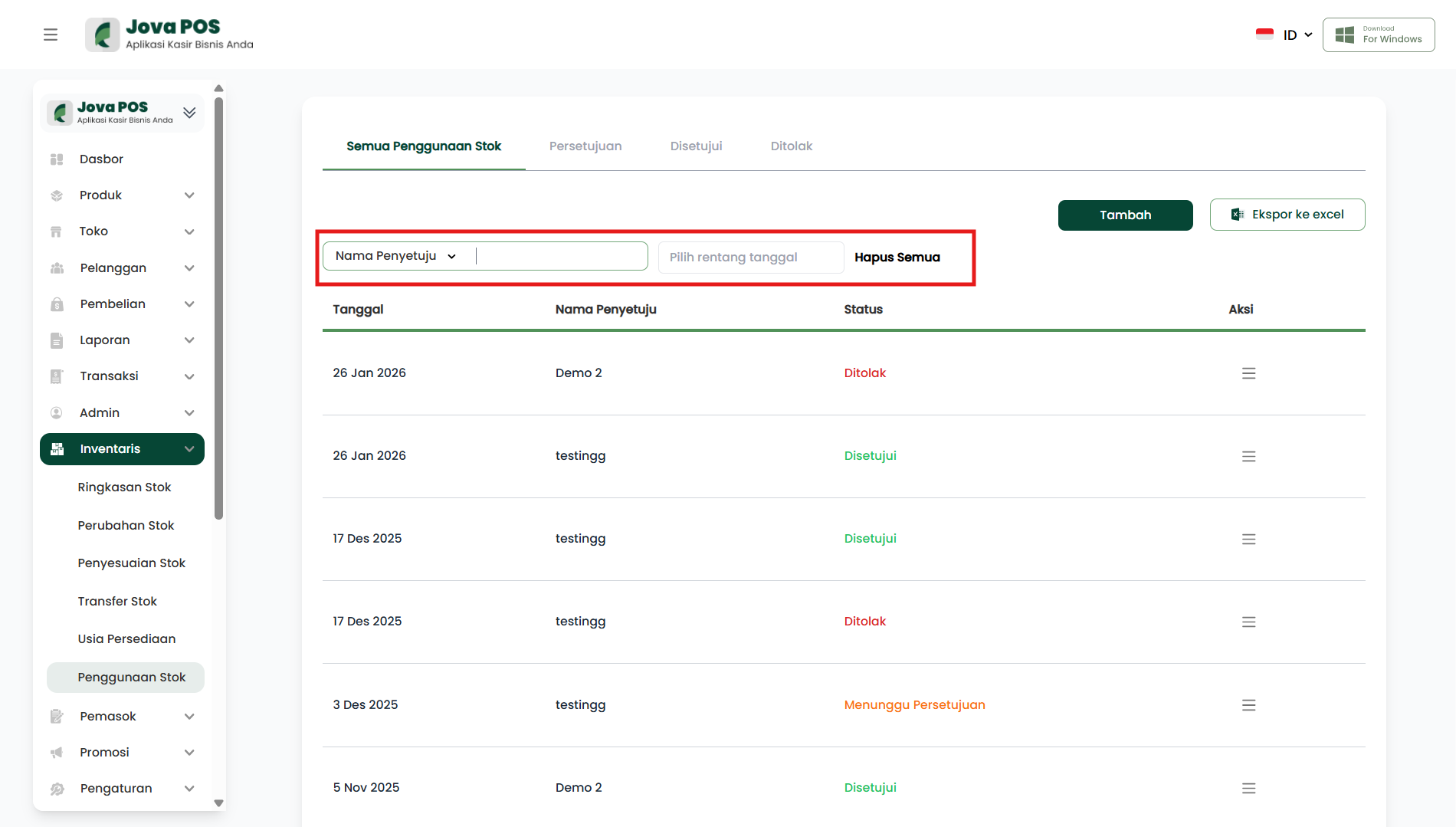
You can also use search filters to find stock usage by Approver Name and Date.
Search Filter View:
Use filters to easily search for data by name or date.
6. Exporting Data to Excel
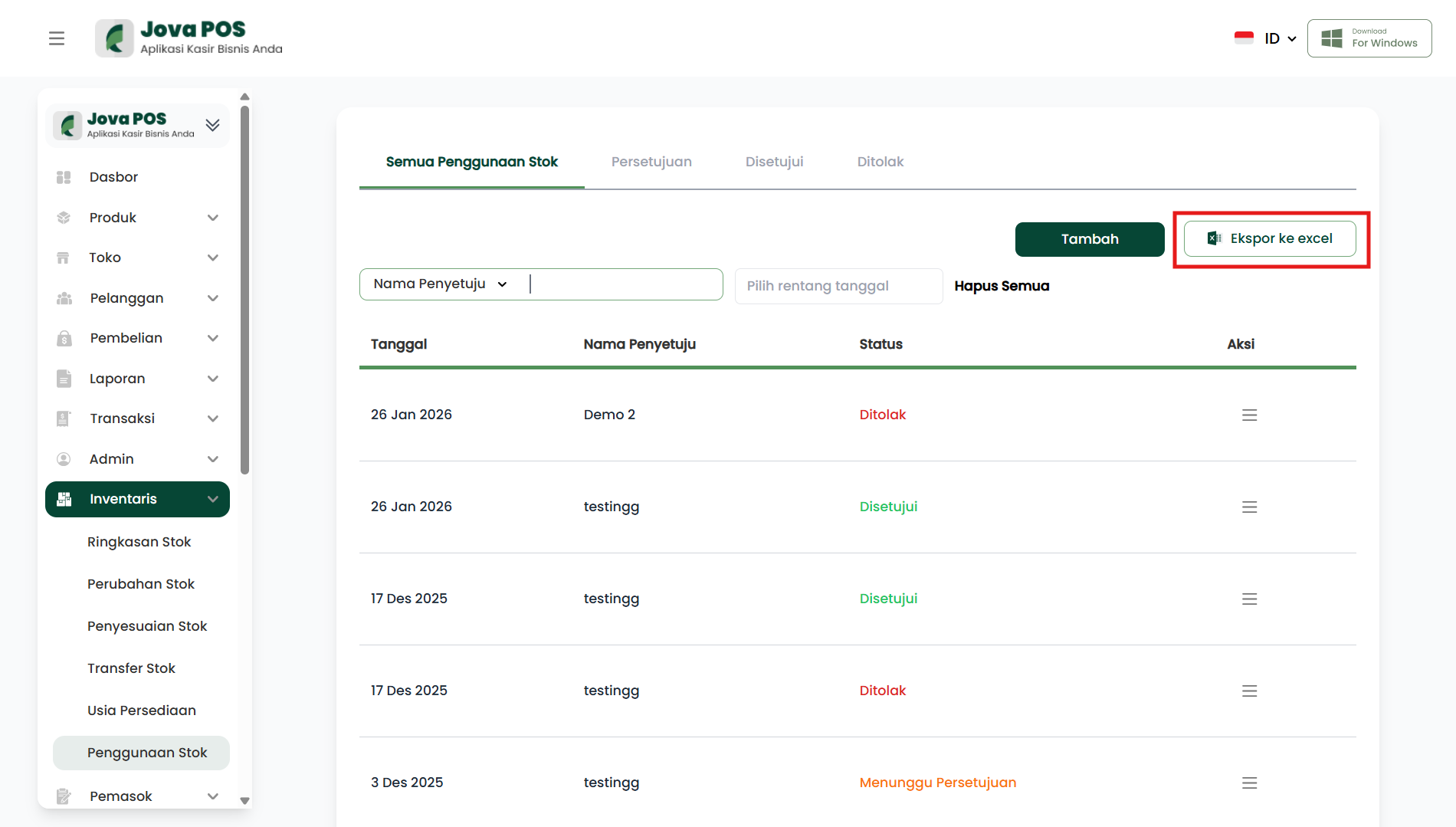
If you need to export stock usage data, you can click the Export to Excel button in the top right corner of the table.
Export to Excel View:
Click to download data in Excel format.
By following the steps above, you can manage Stock Usage in the Jova POS application easily and efficiently.